
Backups
The Backups page creates and lists online copies of the active game's save. These are best-effort file copies, not consistent checkpoints, and 7DPanel does not offer a one-click restore API.
Create a backup
- Open Backups and choose Create backup. Provide an optional name and choose directory or ZIP format.
- Watch the new record until it finishes. Inspect its details and warnings; a record can complete with warnings.
- Keep an independent copy of important backup files outside the game host.
The records list can include earlier worlds and saves. Its world and save filters affect only the list; creating a new backup always targets the currently active save.
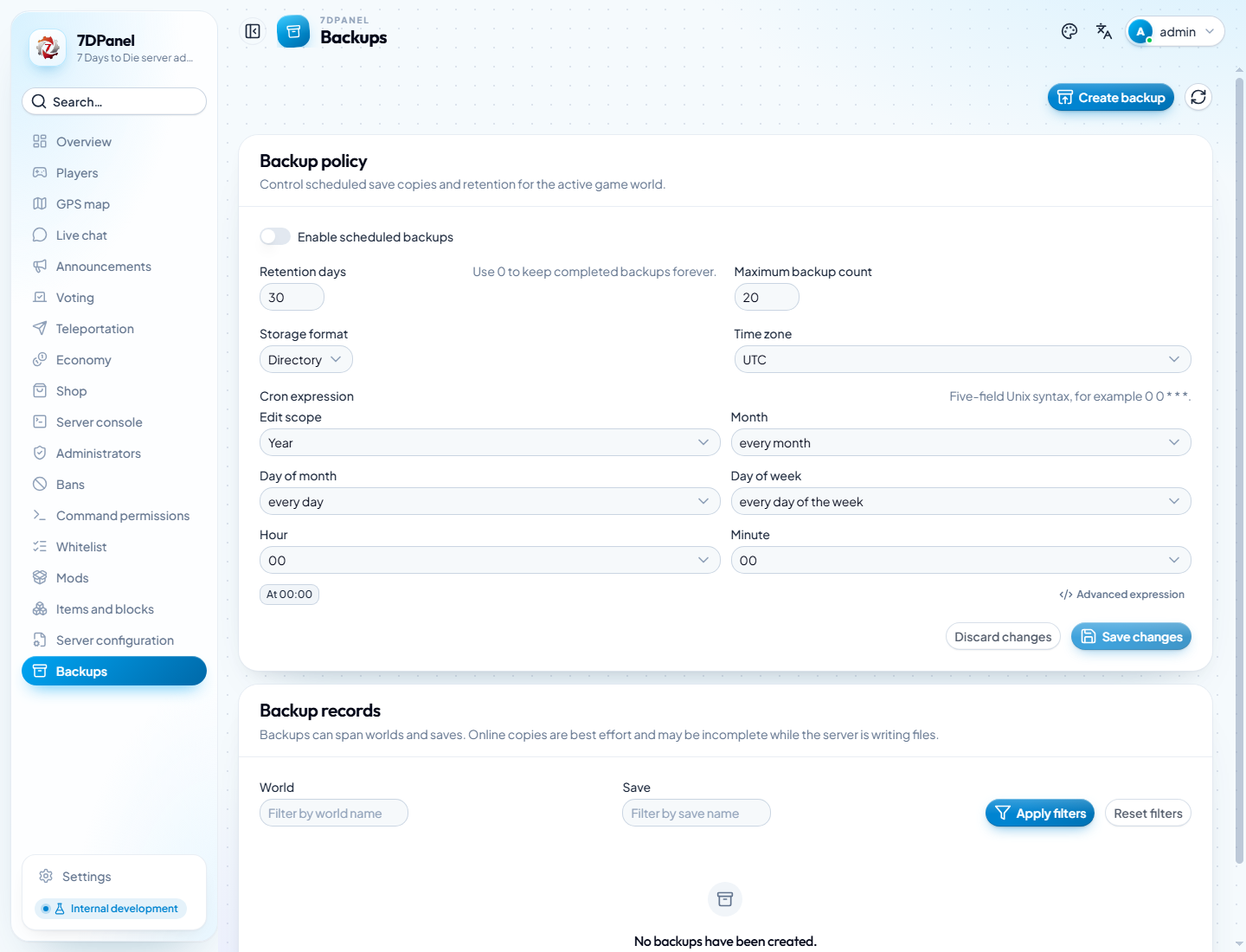
Captured from the configured development backend. No backup records existed at capture time; the policy settings are the server's current values. No backup was created for this screenshot.
Schedule and retain copies
Set the schedule, IANA time zone, format, retention days, and maximum backup count in the configuration form, then save. Confirm a later run in the records list. Scheduling does not guarantee that a live copy is safe to restore without inspection.
Restore manually
Stop the game server, identify the intended world and save from the record details, and make a separate copy of the current save. Extract or copy the recorded files into the game's native save location, then start the server and check the result. The exact save path depends on the game's installation and active configuration. There is no restore button in 7DPanel. Keep the Mod's data/ directory backed up separately; save backups do not replace it.