
Overview
Open Overview after signing in to see whether the game server and its host are responding.
Read the status
- Check the game status and player count before using game-dependent actions.
- Review the host CPU, memory, disk, and network summaries when diagnosing slowdowns.
- Use the refresh action when you need a new snapshot immediately. The page also polls game statistics and host metrics while it is active.
CPU usage and network throughput need two host samples, so they may initially show a waiting state. If one panel fails while another still updates, use its error message and the Troubleshooting steps instead of treating all data as unavailable.
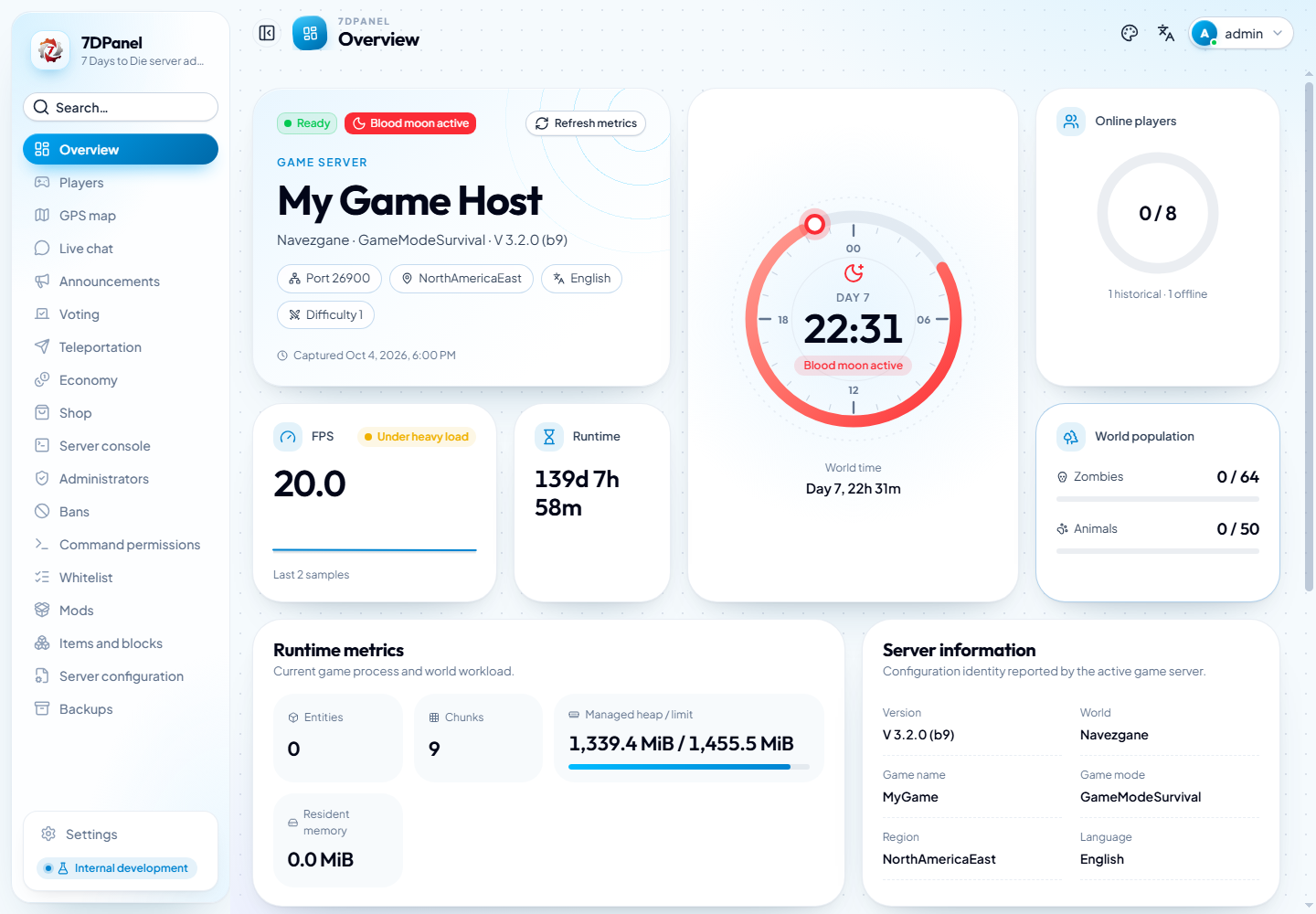
This screenshot was captured from the configured development backend. Server names, player counts, timestamps, and host metrics reflect the server state at capture time and may change.
Continue to Players and map for individual player activity or Chat and console for live events.
Choose an appearance
Use the top-bar Theme control or Settings to select an appearance. Classic dark uses flat dark surfaces with fewer decorative patterns; status colors and map content remain visible. Theme changes are browser preferences and do not alter server configuration. The panel's Language menu is independent of the guide's language selector and the game's language.