
Player center
The Player center lets players browse the shop, purchase products, inspect their own orders and balance, and claim daily rewards. It uses the same deployed panel at /player, with a separate player session. Administrator passwords and Steam administrator sessions do not sign you into the player center; player sessions do not grant management access.
Sign in from the game
- Connect to the server. If the player-center link was added while you were already connected, reconnect to load the updated game interface.
- Open the chat input to click the bright green Click to enter player center link above chat. Accept the game's URL confirmation if it appears.
- Alternatively, enter
/webin game chat to receive a private clickable link and a six-character login code. Use the current command prefix if it differs from/; the login page shows the server's actual command. - Open the link in the same browser you intend to use, or enter the short code at
/player/login. The short code expires after two minutes and can be used only once. Requesting another replaces the previous short code.
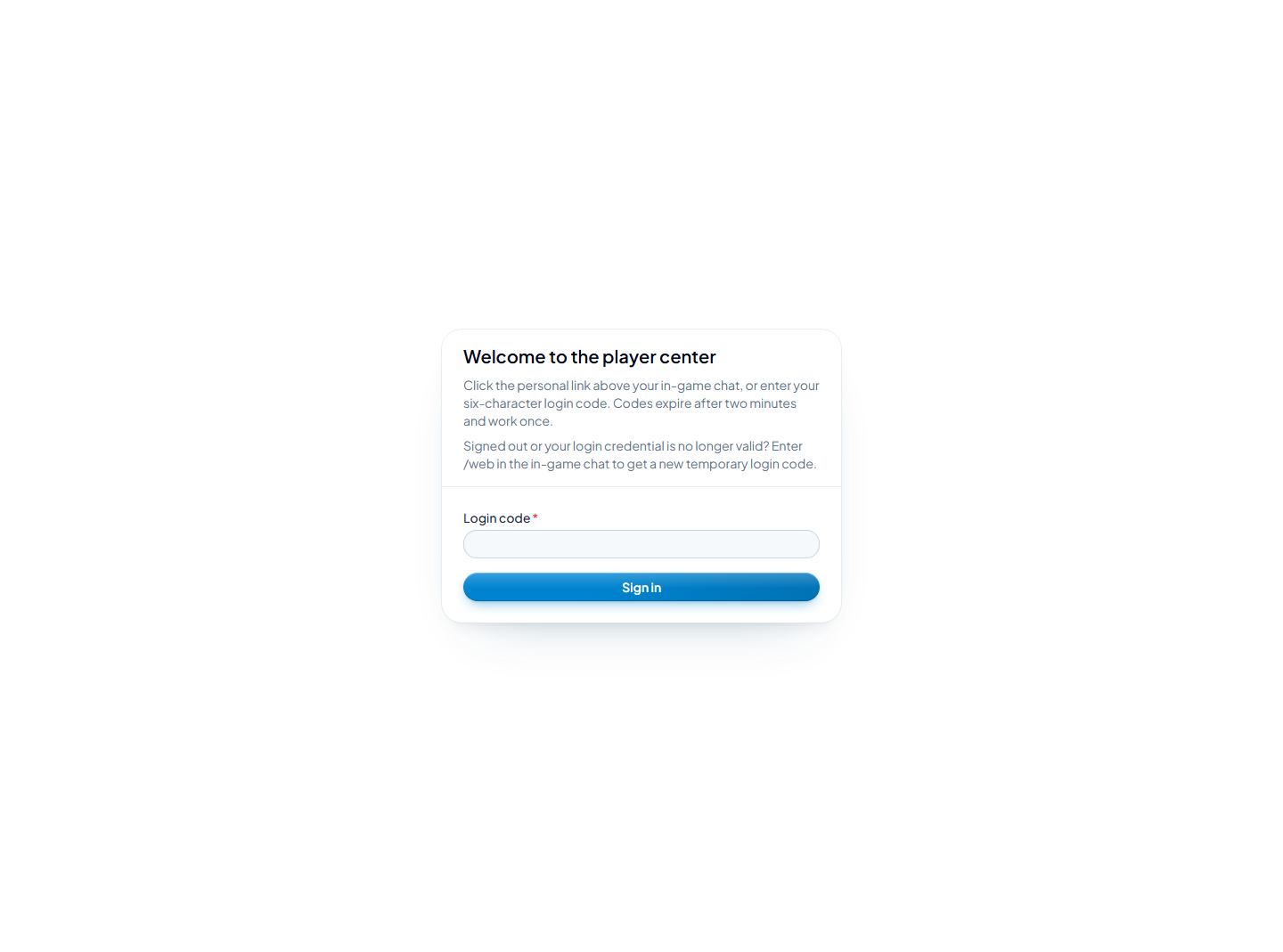
Captured from the real frontend and configured backend without entering a login code. No authenticated player session was available for screenshots of the self-service pages.
The personal link supplied on joining is valid for that connection until consumed, replaced, or disconnected; its credential differs from the two-minute short code. Keep both private. An already signed-in browser for the same player opens the shop directly. A link for another player asks you to confirm an account switch. After sign-out or an invalid code, request a new code in game instead of reusing an old link.
Shop and review orders
Open Shop to search or filter available products, inspect a product's contents, and choose a permitted quantity. Review the total price, remaining daily allowance, and any cooldown before buying. Buffs, bundles, and console command products use quantity one. The rules match the in-game Shop commands.
Purchases require the player to be online. Disabled actions display a reason near the button, such as a loading or unavailable account, disabled Economy, insufficient balance, a cooldown, or an exhausted daily limit. Refresh reloads both the product list and account state.
If a purchase request loses its response, the page retains the pending purchase and retries that same request, including after a reload, to avoid another debit or delivery. Resolve the pending request before starting another purchase. If an order is marked Requires administrator review, ask the operator to inspect its management record; buying again can duplicate an effect.
Open Purchases to inspect your own order history and details. Player views do not expose administrator command arguments, delivery audit evidence, or operator resolution actions.
Balance and daily rewards
Open Account to inspect the currency balance and transaction history. Filter transactions by type, source, or time as needed. Times display in your browser's time zone. A missing currency account is an empty state; simply viewing it does not create one.
Daily claims require the player to be online, Economy and daily rewards to be enabled, and today's reward to remain unclaimed. The page explains why claiming is unavailable. Web and in-game daily claims share the same claim, so using both does not grant a second reward. The daily reset follows Economy's configured time zone; Shop daily limits use UTC days separately.
An existing browser session can still read your own data after leaving the game, but purchases and daily claims require reconnecting. Server-side validation is authoritative even if an action appeared available before you disconnected.
Prepare access as the server owner
Set publicBaseUrl to the browser-visible HTTP(S) origin and restart after changing it; see Panel connection settings. Player-center links use this address even if Steam administrator login is disabled. A reverse proxy must serve the frontend for /player/* and forward /api and /oauth unchanged. Use HTTPS for public access.
Keep 7DPanel Chat enabled for players to request new /web codes. The prefix follows Chat configuration, while the web command name is fixed. If login options cannot load, use the page's retry action. If issuing codes is unavailable, check Chat and the public address; valid credentials already issued can still be redeemed. Changing the browser origin requires a new browser login.